 Yiluna
Turn a still image into a deliberate moving shot.
Start from a still you already trust, then use Seedance 2.5 on Yiluna to animate 4-30 second clips at 480p or 720p. See the credit quote before submit — no subscription required.
Opens Seedance 2.5 in image mode. Upload your first frame, review the credit quote, then generate.
Build a motion prompt for free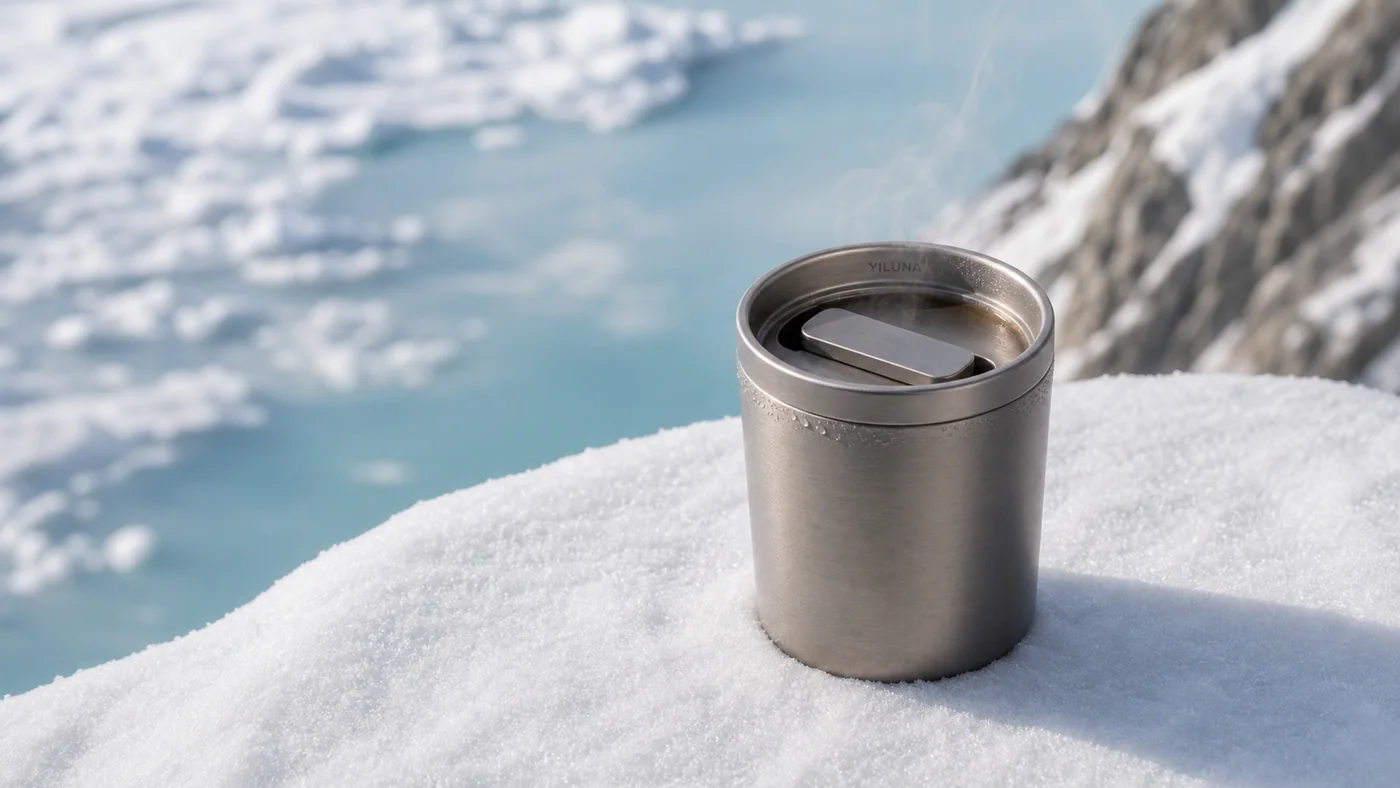
Image-to-video prompt generator
Give one shot a clear direction. Choose the camera move, describe what happens, and keep the important details from your first frame. This free writing tool runs in your browser.
A small move keeps attention on the subject without asking for a new angle.
This assembles instructions, not a video. Rendering in Yiluna requires sign-in and credits. The studio opens in image mode with this prompt and duration; add your first frame and review the quote. A model may still change details or miss the requested movement.
Image-to-video prompts for product photos.
The image establishes the appearance; the prompt directs what moves. These starting-frame exercises pair an existing Yiluna image with a proposed motion brief. Open either to load both into the studio. They are setups to try, not previously rendered video results.
Animate a product photo with a slow push-in
Start with a small camera move and one environmental action. The product remains still while rising steam gives the shot movement.
Read the prompt
One continuous shot. The camera slowly pushes toward the travel mug. A thin ribbon of steam rises and drifts gently to the right. The mug stays motionless on the snow; the lid, rim and silhouette remain stable. Keep the mountain background softly out of focus and the light constant. End on a slightly closer view. No cuts.

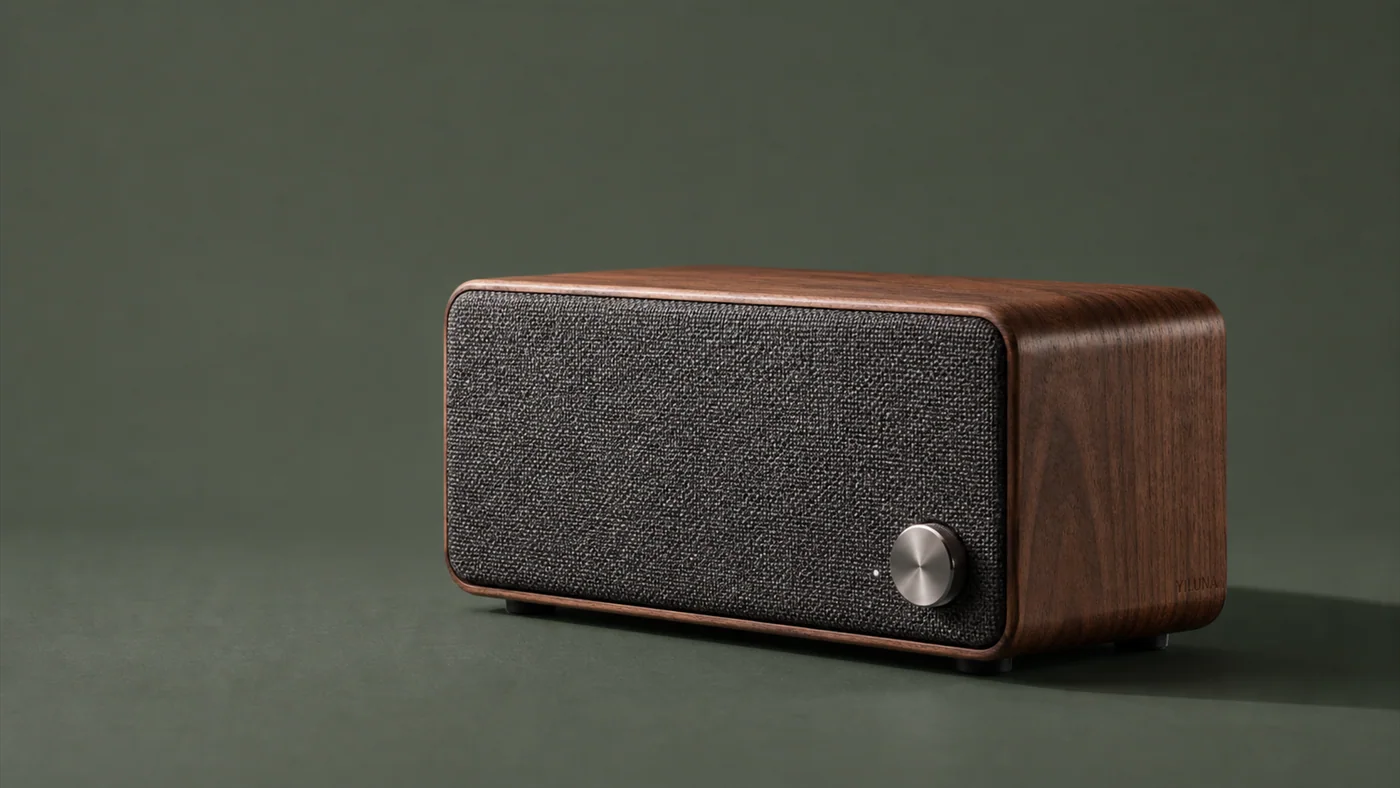
Reveal texture with a short camera slide
A restrained slide asks the model to reveal a little of the side panel. A full orbit would require it to invent more unseen geometry.
Read the prompt
One continuous product shot. A slow, short camera slide from left to right reveals the speaker's wood side panel. The speaker stays still; preserve the grille pattern, control knob and proportions. The soft highlight moves gently across the metal knob. Keep the green background and lighting steady. No cuts or added text.

How to create your first result
Make one deliberate change per attempt. Review the result before spending credits on more versions.
- 01
Choose a usable first frame
Use a sharp, well-lit still with the whole subject visible. Leave space in the direction of movement. A cropped hand, blurred logo or hidden product edge gives the model less reliable visual information.
- 02
Write motion, not a second image description
Specify the camera move, the subject action and what stays still. For a product, try a slow push-in with steam or a short slide with changing reflections. Keep the first test to one shot.
- 03
Add a last frame when the ending matters
Seedance 2.5 accepts first and last frame guidance. Keep identity, framing and light compatible between the two images. Large differences ask the model to invent a larger transition.
- 04
Set duration, review and iterate
The examples open at 5 seconds, 720p, 16:9. The studio also offers 4–30 seconds and 480p. Inspect the beginning, middle and end; revise one motion instruction at a time before rendering again.
What to check when a result misses
These are useful adjustments to try. Generative output varies, so check the image or video itself before publishing.
The product bends or the logo drifts
Reduce camera travel and subject movement. Avoid asking for a complete rotation from one front-facing photo. Exact product geometry or lettering is not guaranteed by image-to-video.
There is an unwanted cut
Remove instructions that introduce a second scene or viewpoint. Try one continuous move. If the action cannot fit comfortably, simplify it or allow a longer duration and review the new quote.
The last frame does not match
Use a target image with the same subject and a plausible change in framing. Frame guidance steers generation; it does not make every intermediate frame deterministic.
Before you generate
What should I write in an image-to-video prompt?
Focus on motion: what the camera does, what the subject does, and what remains still. For example, a slow push-in while steam rises from a stationary mug. Start with one action before combining several movements.
Will the examples generate the exact same video every time?
No. These are reference images and proposed motion briefs, not deterministic animations. Each generation can vary. The studio loads the selected image, prompt and settings for you to review before spending credits.
Does image-to-video use Seedance 2.5?
Yes. Yiluna Video Studio can run image-to-video on Seedance 2.5 with first/last frame inputs, 4-30 second durations, and 480p or 720p output. See the dedicated Seedance 2.5 landing for a live estimate.
How much does Seedance 2.5 image-to-video cost?
Credits scale with duration and resolution. The lowest Seedance 2.5 preset is 88 credits for 4 seconds at 480p; longer or 720p shots cost more. The studio shows the exact quote before you submit.
What makes a good start frame?
Use a clear image with the main subject visible, enough background context, and no important details cropped out.
Do I need a subscription?
No. Image-to-video on Yiluna is pay as you go with credits. Pack credits last one year from purchase, and failed system or provider jobs refund automatically.
Continue your project
Move from a still to a clip, refine a background, or plan the next shot.