 Yiluna
AI product photos, with a clear creative direction.
Build a studio packshot, a lifestyle setting or a material study. Start with your product photo, adapt a practical brief, and check every detail before publishing.
Upload your product in the studio. Sign-in and credits are required to generate; review the quote first.
Choose the shot before you write the prompt.
A listing image needs a readable product. A campaign image needs a setting and a reason to look. These Yiluna gallery concepts show three directions, with starting briefs you can open and adapt. They are generated concepts, not photographs of a verified retail SKU.
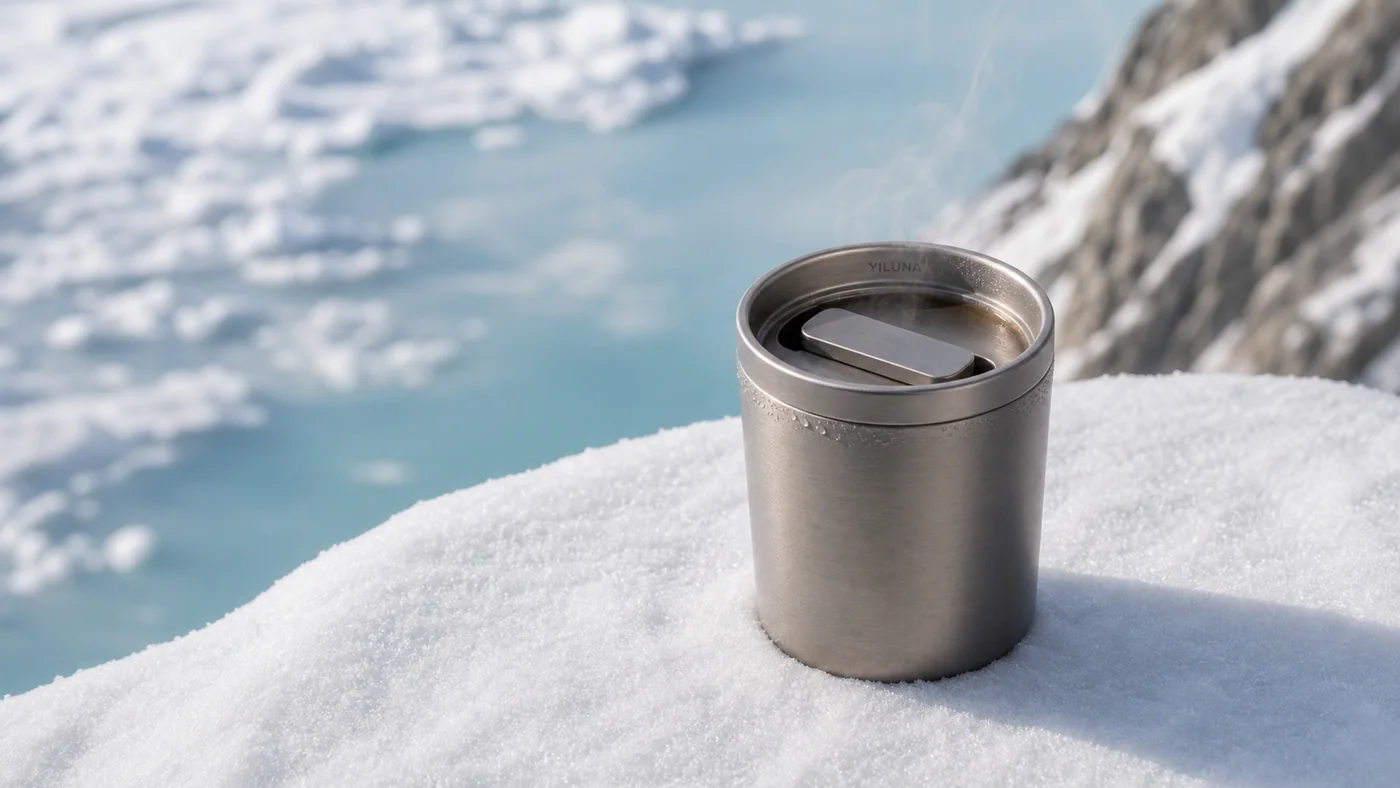
Lifestyle product photo
Give an everyday item a clear use context. Keep the product separated from the background, and leave room for your own campaign copy after generation.
Read the prompt
Wide 16:9 outdoor product shot of a brushed metal insulated travel mug standing upright in powdered snow with wispy steam rising from the lid and tiny condensation beads near the rim. A pale icy blue lake and snow-dusted rocky mountains sit softly out of focus in the bright cold background.
Studio product photo
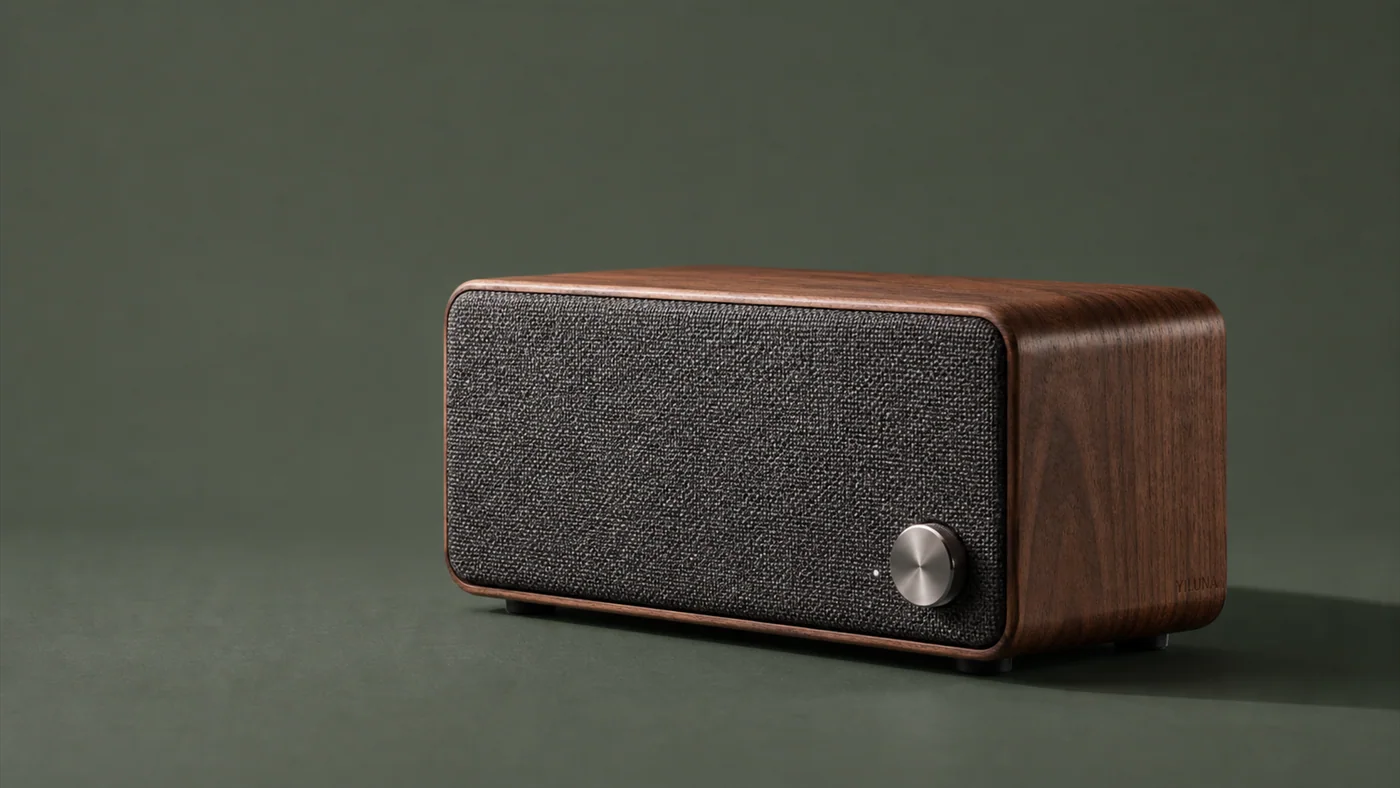
Describe the surface, background and light direction. A quiet setting makes it easier to inspect wood grain, fabric and metal details.
Read the prompt
Wide 16:9 studio product photograph of a mid-century rectangular speaker with rounded corners, dark walnut sides, charcoal woven front fabric, a brushed silver concentric control knob, and a small glowing white indicator on a seamless dark forest-green surface with soft left-side lighting and a gentle shadow to the right.
Watch product photography
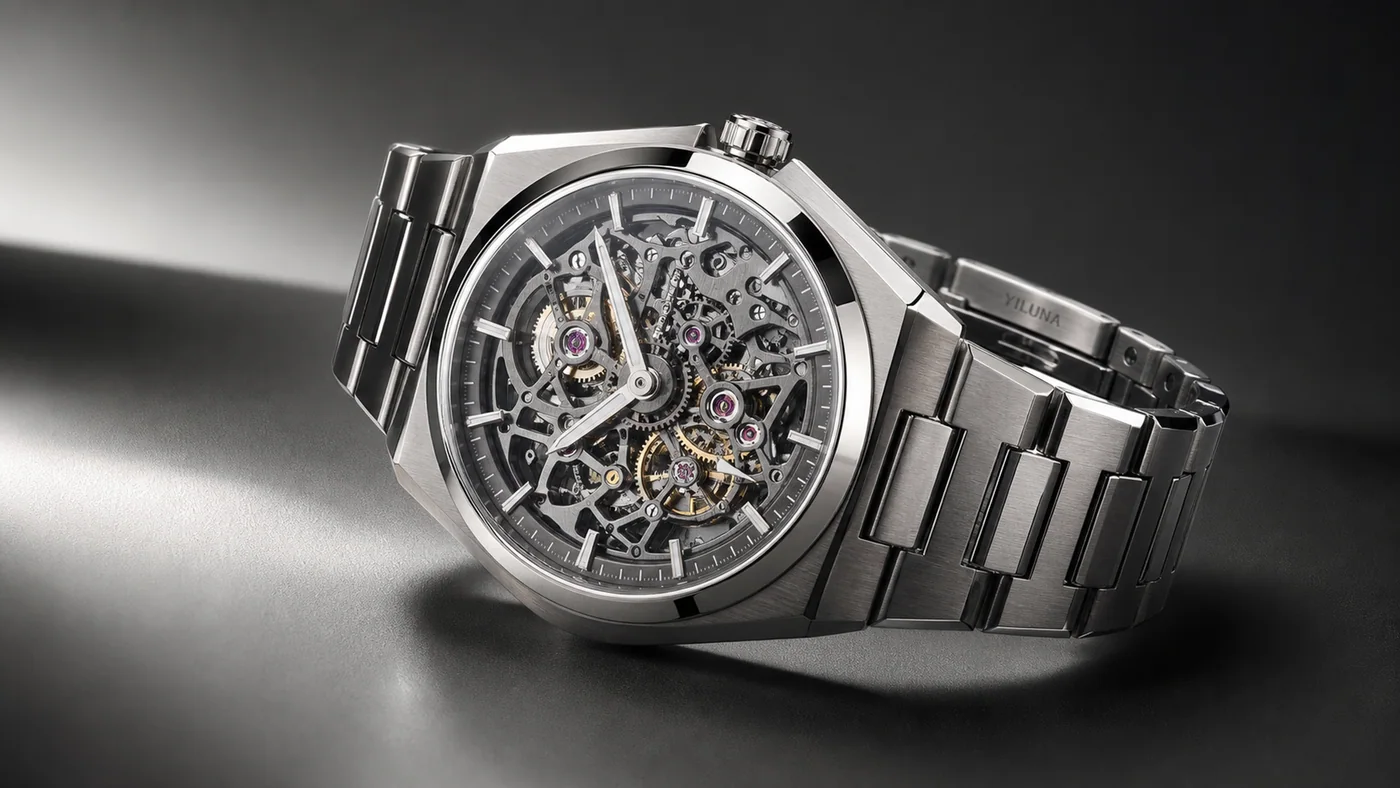
Use directional light to explore a premium material treatment. Inspect hands, dial markings, links and brand details against the real item before using a result in a listing.
Read the prompt
Wide 16:9 luxury product photograph of a skeletonized mechanical wristwatch with a brushed steel integrated bracelet on a dark matte surface. The open dial exposes layered gray bridges, golden gears, pink jewel bearings, luminous baton hands, and a polished angular case catching dramatic side lighting and soft gradients.
How to create your first result
Make one deliberate change per attempt. Review the result before spending credits on more versions.
- 01
Upload a clear reference
Photograph the actual item with even light, visible edges and minimal obstruction. Upload it in Image Studio when identity matters. Text alone creates a concept and cannot establish an exact SKU.
- 02
Specify what changes
Describe one background, one lighting setup and one viewpoint. Say which product features should stay the same. Begin with the prepared square packshot brief, or use a wide gallery brief for an ad concept.
- 03
Review the generation quote
Choose a model and output size in the studio, then check the credits before generating. Start with one image so you can correct the direction before making more versions.
- 04
Inspect before publishing
Compare the result with the source at full size: shape, color, label, material, included accessories and shadow. Use the background remover for a cutout, or the photo editor for a targeted change.
What to check when a result misses
These are useful adjustments to try. Generative output varies, so check the image or video itself before publishing.
Product details have changed
Use your actual product as a reference and simplify the edit. If text or geometry still changes, retain the real product photograph and use a cutout workflow. A stronger prompt is not a guarantee of exact preservation.
The scene looks artificial
Ask for a contact shadow, a single consistent light direction and a surface that suits the product. Remove extra props until the product reads clearly.
The listing needs a white background
Generate a neutral studio version or remove the background from your source photo. Check the destination marketplace's current image requirements before export; an AI result is not automatically compliant.
Before you generate
Are the sample images real product photographs?
They are AI-generated concepts from Yiluna's gallery. The included briefs are reusable starting points; generation will produce a new variation. For an existing SKU, upload a photograph of the actual item and verify the result against it.
Can AI keep my logo and packaging exactly unchanged?
A reference helps, but generative editing can alter lettering, dimensions and small details. Inspect the result at full size. When exact pixels matter, use the original product photo with background removal or conventional compositing.
Can I use Yiluna for ecommerce product images?
Yes. Yiluna is designed for product photo drafts, listing visuals, campaign concepts, and social ad imagery. Review final outputs before publishing them commercially.
Can I keep a product consistent across images?
Use a clear reference image and keep your prompt consistent. This helps preserve visual direction while you test backgrounds, lighting, and composition.
Does this replace a real photoshoot?
It is best for drafts, listing variants, creative tests, and marketing concepts. For regulated or exact product claims, verify details against the real product.
Continue your project
Move from a still to a clip, refine a background, or plan the next shot.