 Yiluna
AI Cat Video Generator
Give your cat a slow blink or a curious glance. Prepare a photo-to-video shot with Grok Imagine or Seedance 2.5, or describe a new cat and scene from scratch.
Choose an action and model below, then open the prepared shot in Video Studio. Upload your own cat photo or try a sample. Review the credit quote before generating.
Direct your cat’s next move.
Choose a small action, keep the cat recognizable, and open the complete setup in Video Studio.
10 seconds · 720p · Review framing with your reference
Preparing this brief is free. Generation opens in Yiluna and requires sign-in and credits. Review the selected model, reference and quote before submitting.
Two cat photos. Two simple actions to try.
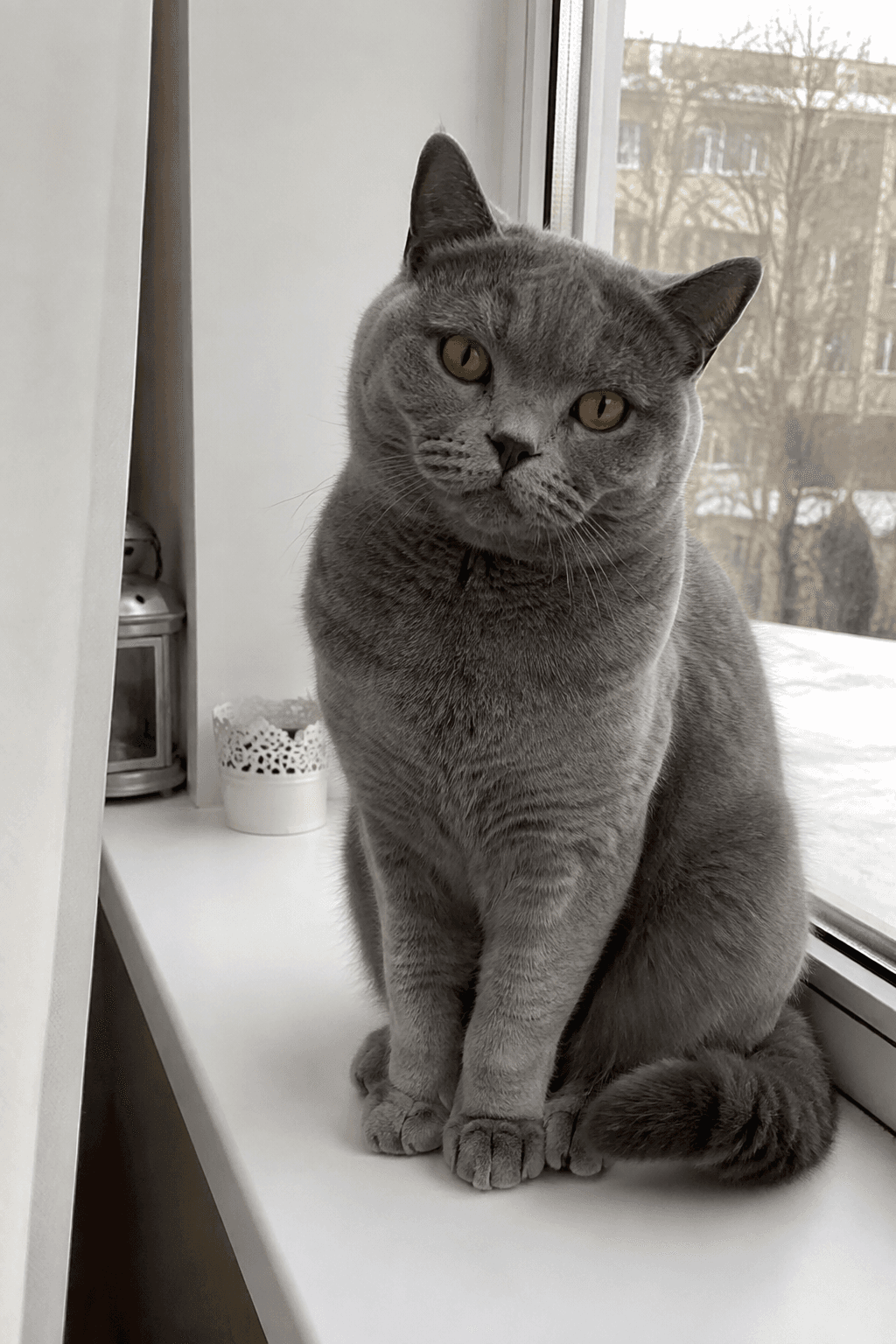
A first frame supplies the cat's appearance; a motion prompt tells the model what happens next. These Image-2 stills come from Yiluna's public pet collection, generated on August 22, 2026. The paired motion prompts are exercises to try, not previously rendered cat videos.
A slow blink by the window
Keep the body and camera still while the eyes and ears move. Open this setup to load the displayed cat photo and prompt, then replace the photo if you want to animate your own cat.
Read the prompt
One continuous shot using the uploaded cat photo as the first frame. The cat gives one slow blink, then looks calmly toward the camera. Add subtle breathing and a small ear twitch. Keep the cat seated, the paws planted and the camera locked. Preserve the same face, fur color, markings and window light. No cuts, no new animals, no speech or added text.

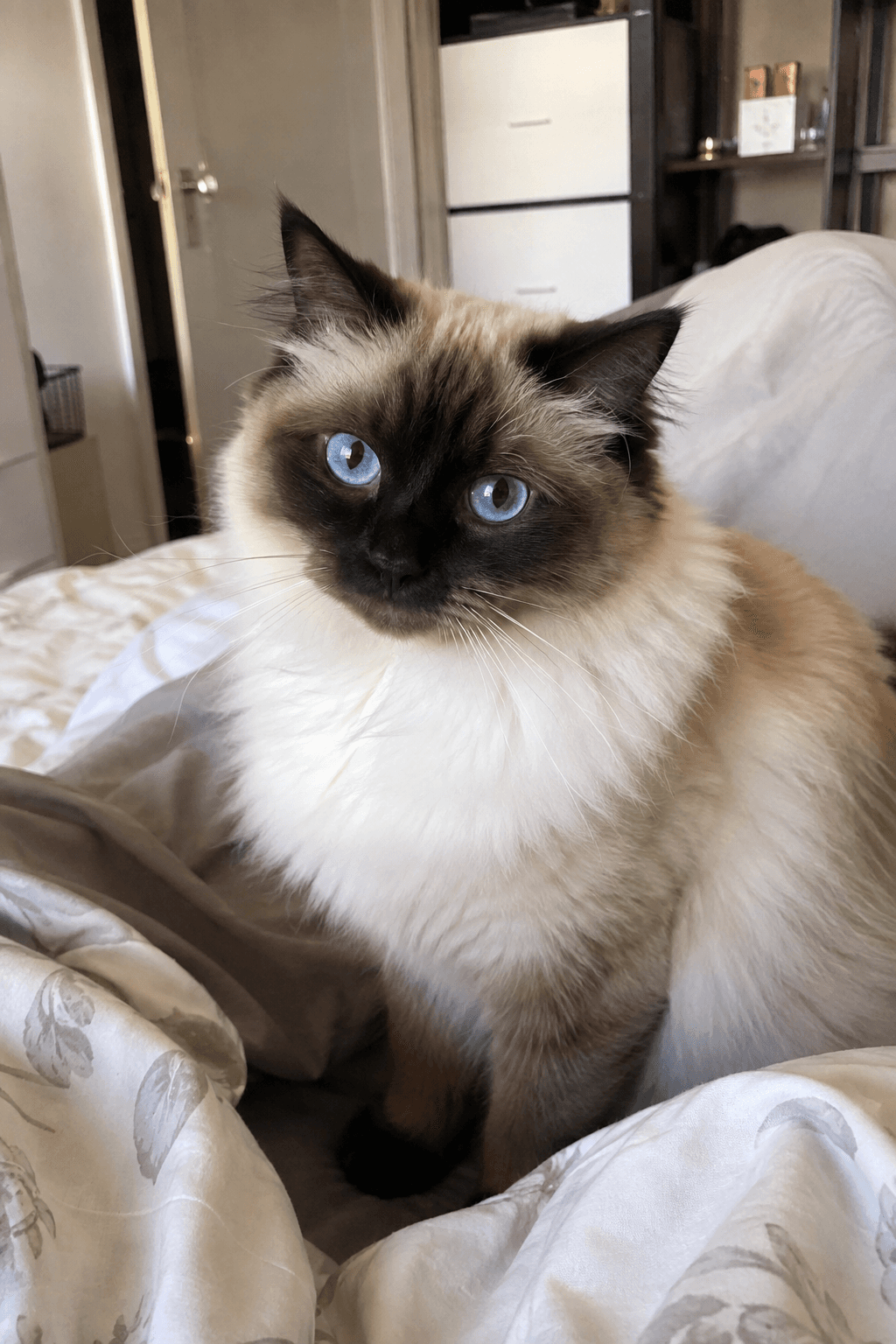
A curious glance, then back to camera
Use a small head turn that keeps the face visible. A complete turn or a leap asks the model to invent more of the cat's hidden body. Review the eyes, ears and coat pattern throughout the new clip.
Read the prompt
One continuous shot using the uploaded cat photo as the first frame. The cat slowly turns its head a little toward the window, pauses, then looks back toward the camera. Keep the body seated and the camera still. Preserve the same blue eyes, face shape, coat pattern and soft room lighting. The tail and paws remain calm. No cuts, no new animals, no speech or added text.

How to create your first result
Make one deliberate change per attempt. Review the result before spending credits on more versions.
- 01
Choose a clear cat photo
Use one cat with visible eyes, ears and the body parts needed for the action. Avoid cropped paws, motion blur or another pet overlapping the subject.
- 02
Give the cat one action
Start with a blink or a small head turn. Keep the camera still and name the fur, face and lighting details you want to retain.
- 03
Pick a model and check the quote
Choose Grok Imagine or Seedance 2.5, then review the first frame, output settings and credits in Video Studio. Sign in when you are ready to generate.
- 04
Watch the whole clip
Inspect the start, middle and end for changing eyes, extra limbs or a drifting background. Download a result you accept, or simplify the action for another attempt.
What to check when a result misses
These are useful adjustments to try. Generative output varies, so check the image or video itself before publishing.
The cat stops looking like your photo
Return to the original first frame. Reduce head movement, keep the camera fixed and remove costume or scene changes from the motion prompt.
Paws or the tail bend strangely
Choose a photo where those parts are visible. Try a seated reaction before asking for walking, dancing or interaction with objects.
The clip changes scenes
Describe one continuous shot and one action. Save a new setting or a second story beat for a separate shot that you can review on its own.
Before you generate
Can I make an AI cat video from my own photo?
Yes. Choose a motion brief, open Video Studio and upload a clear photo of your cat as the first frame. The sample setups can also load the displayed generated cat photo. A reference guides appearance, but identity can drift in the generated clip.
Can I use Grok or Seedance for a cat video?
This page offers Grok Imagine and Seedance 2.5 through Yiluna's existing Video Studio. Pick a model before opening the shot and check its duration, resolution and credit quote. The two sample cards are proposed motion setups, not a comparison of completed model outputs.
Does the Grok cat-video setup generate sound?
The Grok Imagine option opens as Yiluna Video Basic and produces a silent clip in this workflow. Add sound separately if you want a meow, music or narration. A motion prompt on this page does not create a voice or a soundtrack.
Are the cat videos shown here finished outputs?
The examples on this page are generated cat photos paired with motion prompts. They are starting frames, not finished cat videos. Creating a new clip happens in Video Studio after you review the setup and submit a generation.
Can I create a cat video without a photo?
Yes. Choose the text input option to invent a cat from a description. Describe the cat's appearance, one action and one setting. Upload a photo instead when you want an existing cat to guide the result.
Is the AI cat video generator free?
You can browse the examples, prepare a motion prompt and open the setup without payment. Generating a video requires a Yiluna account and sufficient credits. The studio shows the quote before you submit; model and settings affect the cost.
Continue your project
Move from a still to a clip, refine a background, or plan the next shot.